Notes and Documents
Workstaff gives you the flexibility to share important information with your staff by uploading documents and adding notes at different levels of the project.
Uploading Documents
You can upload PDF, PNG, or JPG files to your project to make them available to your staff.
To upload documents, click on the grey area indicated by the arrow below. In the drawer that appears (the inspector), click on the document icon, then click Upload to attach your files.
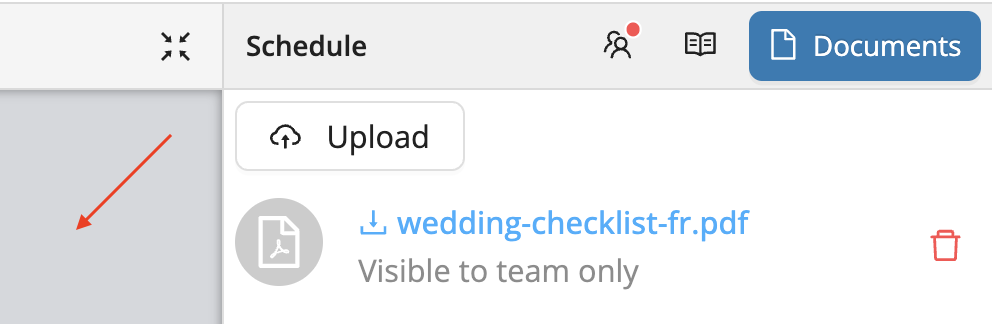
Once uploaded, staff assigned to the project will be able to view these documents in the mobile app under the Important Readings section of their shift details.
Adding Notes
Notes can be used to share context, instructions, or updates with your team. You can add them at different levels depending on the audience and purpose:
- Global notes (under the “Shared with staff” tab): visible to all booked staff, as well as those included in the audience if an offer was published.
- Skill-based notes (under the “Shared with staff” tab): visible only to staff with the specific skill.
- Shift-specific notes: visible only to staff booked on that particular shift.
- Private notes: visible only to managers. These can be added at the shift level or at the schedule level.
Staff can see shared notes in different places in the mobile app, depending on the workflow. For example, these notes can appear when staff open an offer, view their shift details, or confirm booked shifts.
Where staff can see shared notes
The following table summarizes where each type of shared note can appear in the mobile app for staff.
| Shared note type | Offer details | Shift details | Shift confirmation |
|---|---|---|---|
| Global notes | Yes, when the offer includes the role | Yes, for booked staff | Yes, for booked staff |
| Position-specific notes | Yes, when the staff member is viewing an offer for that role | Yes, when the booked shift matches that role | Yes, when the booked shift matches that role |
| Shift-specific notes | No | Yes, for booked staff on that shift | No |
Notes are identified by the open book icon 📖 throughout the platform, making them easy to spot at a glance.
Snippets
Snippets are reusable blocks of text that you can save and insert into notes. They are useful for repeated instructions, reminders, and standard messaging.
To create a snippet, open the Snippet option from the note editor, then create a snippet with a title and snippet text. You can also organize snippets in folders.
To add a snippet to a note, place your cursor in the note, click Snippet, then select the snippet you want to insert.
You can also create and insert snippets while composing Broadcasts.