Book Your Team
Once you have created your shifts, Workstaff allows you to book staff in the ways listed below.
Booking Staff From Your List of Suggestions
Workstaff allows you to select staff from a list of suggestions based on the skills, availability and grades of each profile.
- On the project page, select the shift and click on Book staff
- Select staff you wish to book from the list of suggestions
- Click on Book X staff
Fill shifts automatically with Magic fill
Use Magic fill to let Workstaff assign staff to the remaining openings in your shifts. It uses staff suggestions to decide who to consider first, then checks which shifts each person can work. In the Book Staff window, it considers the staff currently shown in the list, otherwise, it considers you're whole staff database.
Magic fill prepares shift assignments in a draft. You can review and adjust them, undo changes, or discard the draft before confirming the final schedule with your staff.
How staff are prioritized
When searching across your full staff list, Workstaff first creates a shortlist based on client history, fewer hours already booked on the relevant dates, and availability. It then considers staff for each position in this order:
- People already booked on that position in the project, even on another date.
- Candidates you have marked with Keep.
- People whose availability best covers the shifts that still need staff. Confirmed availability is preferred to unknown availability.
- People with a history of working for the client, when the priorities above are equal.
- People with higher profile ratings, when all other priorities are equal.
Being prioritized does not guarantee an assignment. Each person must have the required skill for the position. Magic fill skips candidates you have put aside and staff excluded by the client.
How staff are assigned
Magic fill works through the openings one position at a time, starting with the highest-priority people for that position.
For each person, it:
- Checks the shifts that still need staff. It skips shifts that overlap an existing booking, a period marked unavailable, or time outside the person's work-eligibility period.
- Favors groups of shifts across several dates with the same hours or shift label. Larger groups are preferred, followed by groups with more openings. This helps keep the person's schedule consistent.
- Chooses one shift per day at a time, then updates the person's availability before trying to fill more openings.
The process repeats until the openings are filled or no more assignments can be made from the staff being considered. Someone who has not shared their availability may still be assigned if no conflict or restriction is recorded.
For example, if you need staff for the same position from 9 a.m. to 5 p.m. on Monday, Tuesday, and Wednesday, Magic fill favors assigning the same person across those dates when their availability allows it.
Some openings may remain unfilled, and hours are not necessarily shared equally across your team. You can adjust the assignments or book additional staff manually.
Booking Staff Using The Candidates Organizer
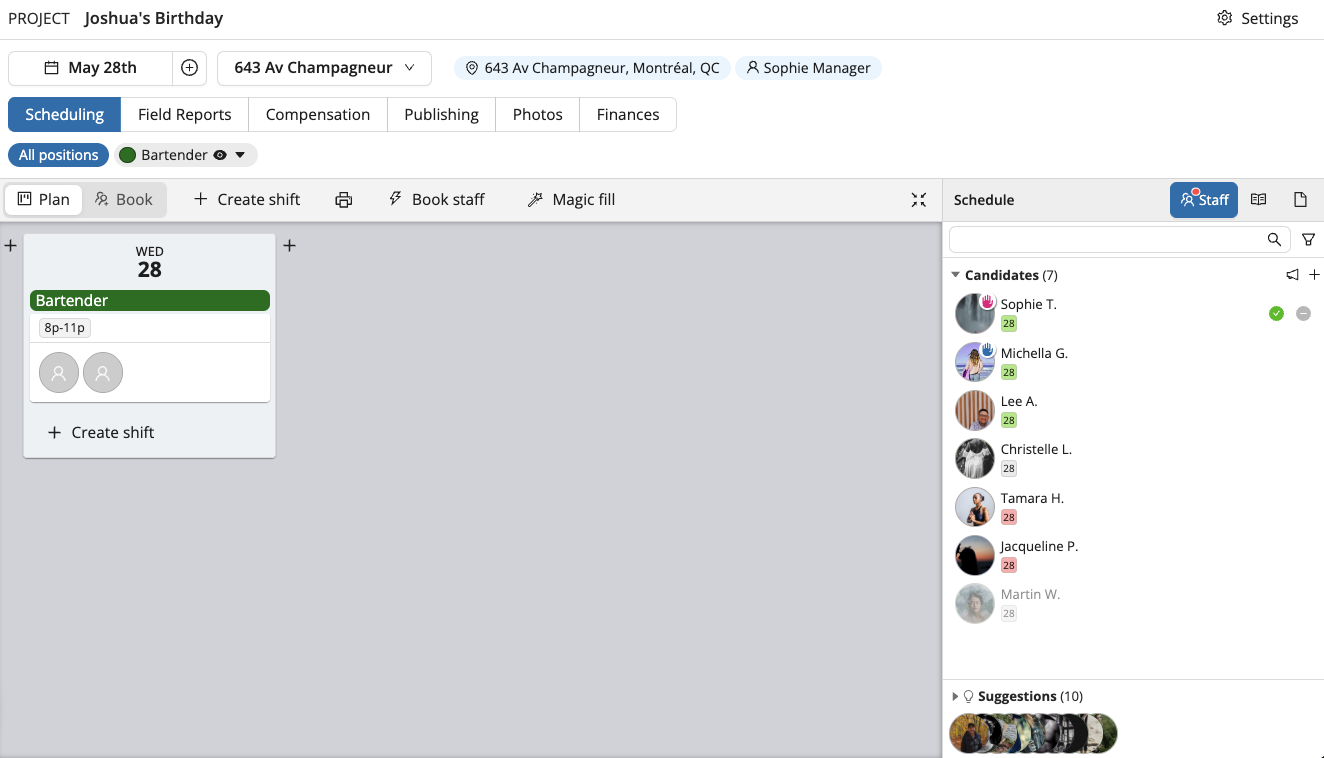
The Candidates organizer is a tool that allows you to book staff in different ways. In this tab, you can see at a glance the Candidates that have applied for positions you’ve published and staff Suggestions.
Booking Candidates That Have Applied For Positions
- Use the search bar and the filters if you are looking for specific profiles
- In the "Candidates" organizer, place your cursor on the candidate's name
- Click on "Book"
- Select the position and the shift(s) you wish to book the candidate for
- Click on Book.
If you are not interested in an application, you can click on Put aside next the candidate’s name. You can later decide to move the staff you’ve put aside back to the list of Candidates by clicking on Keep next to their name.
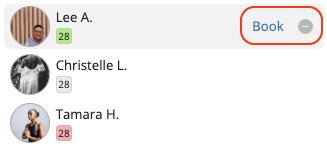
Staff Availability
When your staff members share their availability using the mobile app, this information is displayed in various sections of the web platform, including:
- Staff Suggestion List
- Candidate Organizer
- Day View of the calendar
Staff availability is indicated by different colors:
- Grey: No availability information provided by the worker.
- Green: The staff has indicated they are available.
- Orange: The staff is partially available, and the proposed shift overlaps with their unavailable period.
- Red: The staff has indicated they are unavailable.
- Blue: The staff is already scheduled for all or part of the shift you are planning to assign.
This colour-coded system helps you quickly understand the availability status of your staff members, making it easier to efficiently manage shifts and bookings.
Sorting Your Candidates
After clicking the Keep button to mark candidates you’re considering, you can see who has applied for each position by selecting it. Look for the raised hand icon next to each candidate.
Tips for understanding candidate display:
- Pink raised hand: The candidate has applied, but their application hasn’t been reviewed yet.
- Blue raised hand: The candidate has applied and has been marked as “kept” for consideration.
- Name appearing in light grey: This means the required skill for the selected position is absent from their profile.
Booking Staff That Does Not Appear in The Suggestions
If you wish to book staff that doesn't appear in your list of suggestions, you can access your entire staff list by clicking on + in the Candidates organizer. You will then be able to search for specific staff using the search bar and the filters. Once selected, they will be added to the Candidates organizer.

Selecting Staff Without Booking Them Yet
If you wish to make a list of the staff that will work on your project without booking them on any specific shift yet, you can also click on + in the Candidates organizer to add them top your list of candidates you can later book.
Choosing a Team Leader
Once you have booked someone for a shift, you can choose to make them a Team Leader.
- Select the person's booking by clicking on their photo bubble or their name in the shift
- Click on the pencil icon Edit
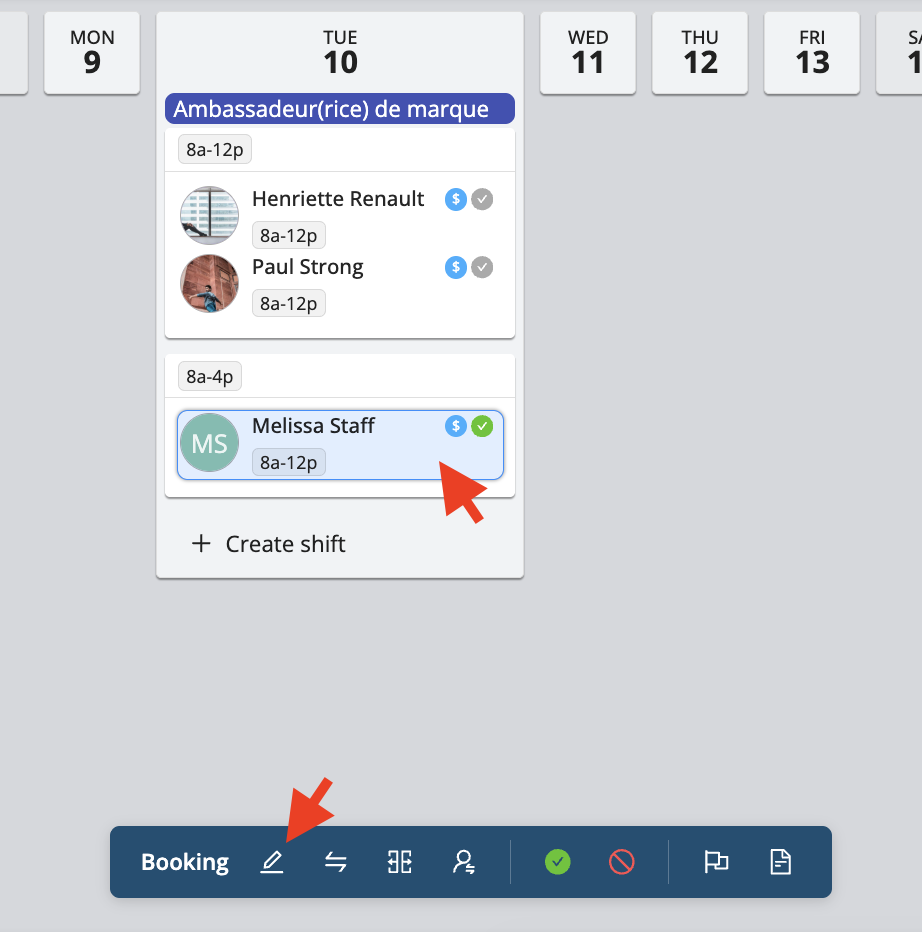
- Check off Team Lead? and click Ok.
Learn what team leads can do in Team Leads, including the settings for time submission and approval.
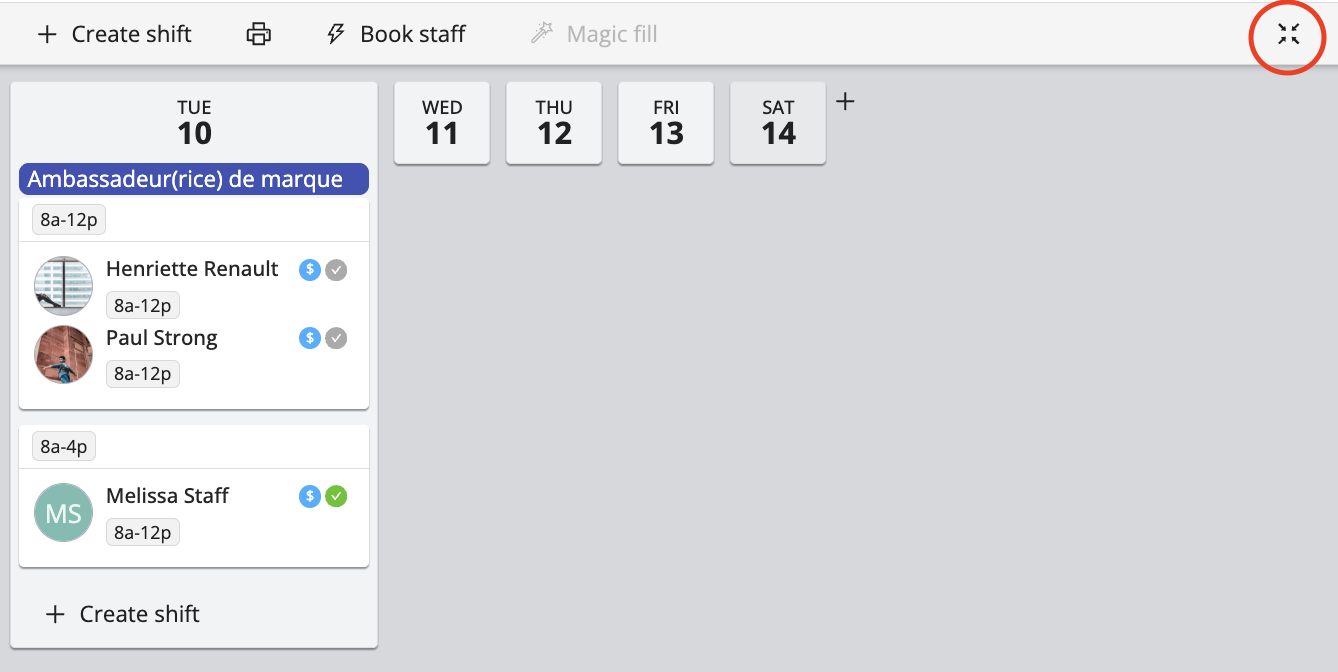
Expand and Collapse Bookings
When you book a large amount of people on a project, Workstaff automatically collapses the shifts' details. You can freely expand and collapse the details of all your shifts by clicking on the Expand/Collapse icon on the top right of the project page. You can also expand and collapse the details of each shift by placing your cursor on it and clicking on the Expand/Collapse icon.