Staff Confirmation of Schedules
When you book staff for a shift or whenever changes are made to their schedule, Workstaff sends them a notification to request a confirmation of their work schedule.
Track the status of the confirmation request
Workstaff allows you to track the status of the confirmation request sent to a person at a glance with the confirmation icon found in the booking next to the person's name.
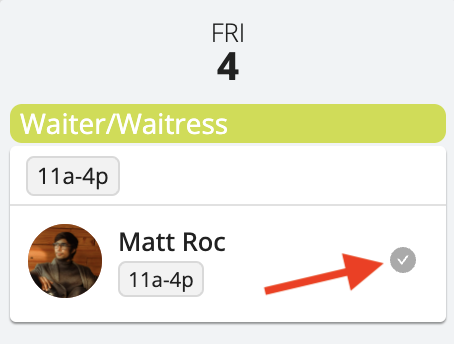
If this icon is:
- Gray: waiting for confirmation
- Green: the person has confirmed this shift
- Red: the person has requested a cancellation for this shift
- Orange: the person has not confirmed this shift within the required timeframe.
Depending on when the booking is created, workers usually have between 6 hours and 48 hours to respond to a confirmation request.
In most cases, the confirmation request expires about 2 days after the booking is created.
If a booking is made closer to the shift, Workstaff still gives the worker at least a few hours to respond before marking the confirmation as late.
Workstaff also avoids setting confirmation deadlines in the middle of the night. In those cases, the deadline is moved to the next morning, or to 2 hours before the shift for very early shifts.
Once the confirmation window has expired, the booking is marked with an exclamation mark in the calendar and planner so you can spot it quickly, and the staff member receives a reminder push notification.
Follow-up confirmation
If a booking was created and confirmed over 72 hours ago and is starting in approximately 24 hours, a second confirmation will be requested from the staff.
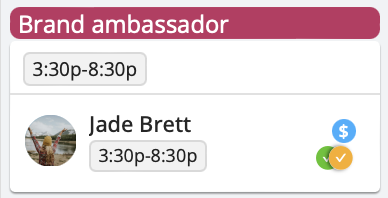
This feature is available when the project reminder settings are enabled for follow-up confirmations and is not applicable to projects using weekly scheduling. There will be only one follow-up confirmation for each group of shifts booked together, based on the date of the first booking.
Handle cancellation requests
When a staff member can no longer work a booked shift, they can submit a cancellation request. The project coordinator is notified by push notification and email, and the request appears in Requests under Current.
The staff member remains booked until a manager or scheduler updates the booking. A red confirmation icon and a cancellation indicator on the project calendar show that the request still needs attention.
To handle a cancellation request:
- Open Requests.
- Select Current, then open the Cancellation Request.
- Review the affected bookings.
- Open the project planner and either replace the staff member or cancel their booking. Your planner changes are reflected in the request automatically.
- Return to the request and click Mark as Resolved.
The request remains visible until it is resolved, so outstanding cancellation requests are easy to find and follow up on.
What if the Person Cannot or Forgets to Confirm?
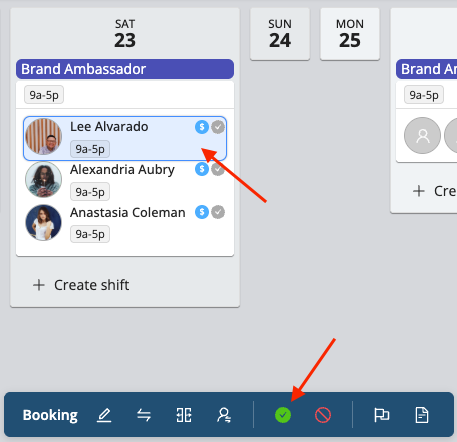
In the event that some of the people you have assigned to shifts are not able to confirm their shifts, you have the option of marking those shifts as confirmed so that all your project scheduling information is up-to-date. In order to mark a booking as confirmed, select the booking and click on the Mark as Confirmed button.
Learn More
Visit the Confirm Your Schedules page in our Help Center for workers to learn more and share this information with your staff.