Manage Departments
Departments help you separate your Workstaff activity into operational areas. Use them when different teams, locations, or business units need their own staff, clients, projects, schedules, and reports.
How departments work
When departments are enabled, Workstaff uses your current department to decide which data you can see and create.
- Managers can have access to all departments or only to selected departments.
- Staff can belong to one or more departments.
- Clients belong to one department.
- Projects belong to one department. When a project is linked to a client, the project uses the client's department.
- Reports and list views follow your current department.
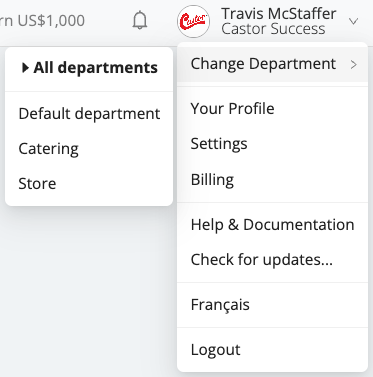
If you have access to more than one department, you can switch departments from the user menu.
Switch departments
- Click your profile menu in the top-right corner.
- Open Change Department.
- Select the department you want to work in.
You can select All departments to view information across the departments you can access. In that view, department filters and department labels help you identify where each item belongs.
Add a department
- In the main menu, go to Settings.
- Open Departments.
- Click Add department.
- Enter a Code and a Name.
- Click Save.
The code is a short identifier for the department.
If you cannot see the Department menu item in the Settings, your user may not have the required access. Only account owners and administrators can manage departments.
Edit a department
- In Settings > Departments, find the department.
- Click the edit icon.
- Update the Code or Name.
- Click the checkmark to save.
Set standard pay rates by department
Departments can have their own standard hourly rate and skill-specific pay rates. Workstaff uses these rates for shifts in that department. If a department does not have its own rate table, the organization defaults apply.
- Go to Settings > Compensation.
- Scroll to Standard Pay Rates.
- Click Add department pay rates....
- Select the department and enter its rates.
- Click Save.
You can edit or remove a department rate table from the same section. Removing it makes the department use the organization defaults again. See Standard Pay Rates for details about skill-specific rates, rate priority, and copying rates between departments.
Delete a department
In Settings > Departments, click the delete icon next to the department you want to remove.
You cannot delete a department when it is:
- The default department.
- The department you are currently working in.
- Linked to clients, projects, staff, or manager access.
Re-assign the related entities before deleting a department.
Manage manager access
Managers can be limited to specific departments.
- In the main menu, go to Settings.
- Open Users.
- Find the manager.
- In Accessible departments, choose All departments or select the departments the manager should access.
- Click Apply.
A manager with access to selected departments only sees data in those departments, even when they select All departments.
Manage staff departments
Staff can belong to one or more departments.
To assign a staff profile to departments:
- Open the staff profile.
- Go to Employment details.
- Edit Departments.
- Select one or more departments.
- Save your changes.
To update multiple staff profiles at once, select staff from the staff list and use the bulk edit action for Department.
Staff must belong to at least one department. Staff outside a project's department cannot be booked on that project's shifts.
Use departments with clients and projects
Each client belongs to one department. A client cannot be shared across multiple departments.
If the same real-world customer does business with you in more than one department, create a separate client record for each department. This keeps each department's projects, staff preferences, pricing, and history separate.
When you create a project for a client, Workstaff uses the client's department for the project. If you need a project in another department, choose or create a client in that department.
Import staff, clients or shifts by department
Imports are department-scoped.
Before importing staff, clients or shifts, switch to the department where the imported records should be created. The import action is only available when you are working in a specific department.