Compensation Settings
Workstaff allows you to customize the way compensation is calculated for your account. To do so, go to Settings > Compensation.
Select your Default Pay Type (None, Hourly or Volunteer). The mode you select will be applied to all new events.
Choosing your Hours Accounting Method determines how hours are counted and displayed in your reports - especially for overnight shifts that span two calendar days. You can choose between two methods:
- By shift start date: All hours are counted on the day the shift begins.
- Split across calendar days: Hours are divided between both days, depending on when they were worked.
Compensation Rules
Once you set the desired values in the available options, they will automatically be applied to shifts when the specified conditions are met.
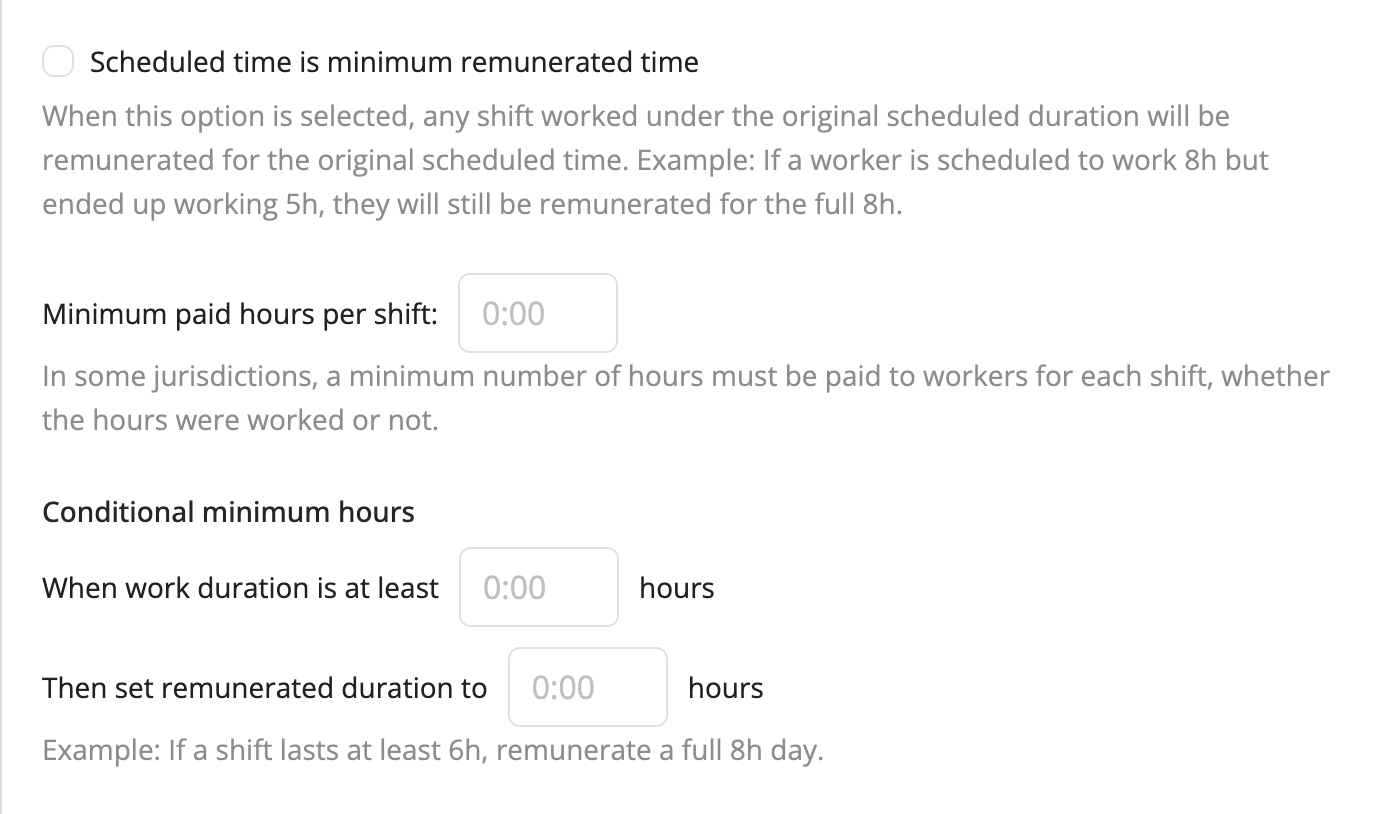
To learn how to configure your overtime rules, see Configure Overtime Rules.
Standard Pay Rates
Standard pay rates provide fallback hourly rates for your staff. Each rate table can include a Standard hourly rate and optional Skill-specific pay rates. When a shift matches one of those skills, the skill-specific rate is used instead of the standard hourly rate.
Configure the organization defaults
The rates under Default rates for organization apply to departments that do not have their own rate table.
- Go to Settings > Compensation.
- Scroll to Standard Pay Rates.
- Under Default rates for organization, enter a Standard hourly rate.
- Add any Skill-specific pay rates you need.
- Click Save.
The standard hourly rate can be left empty. However, staff without another applicable rate may then have no hourly rate for their shifts.
Configure rates for a department
If your account uses more than one department, you can give each department its own standard and skill-specific rates.
- Under Standard Pay Rates, click Add department pay rates....
- Select the Department.
- Enter its Standard hourly rate and any Skill-specific pay rates.
- Click Save.
The department rate table is used for shifts in that department. Departments without their own rate table continue to use the organization defaults. If you remove a department rate table, that department returns to the organization defaults.
Use the copy icon beside the organization defaults or a department to copy that complete rate table to one or more departments.
How Workstaff chooses a rate
When several rates are available for the same shift, Workstaff uses the first matching rate in this order:
- The staff member's skill-specific rate.
- The skill-specific rate from the applicable department or organization table.
- The staff member's base hourly rate.
- The standard hourly rate from the applicable department or organization table.