Client Pricing
Managing how much your clients are billed for each project can be tricky, especially when you’re juggling multiple events, staff roles, and rate structures.
The Client Pricing feature in Workstaff helps you keep a clear view of your client billing rates directly within your projects, so you can better budget, track, and analyze the financial performance of your events.
With Client Pricing, you can:
- Define billing rates for your clients and projects.
- View the planned budget in your project’s Finances tab.
- Compare billed vs. paid hours side-by-side with staff remuneration data.
Define Bill Rates
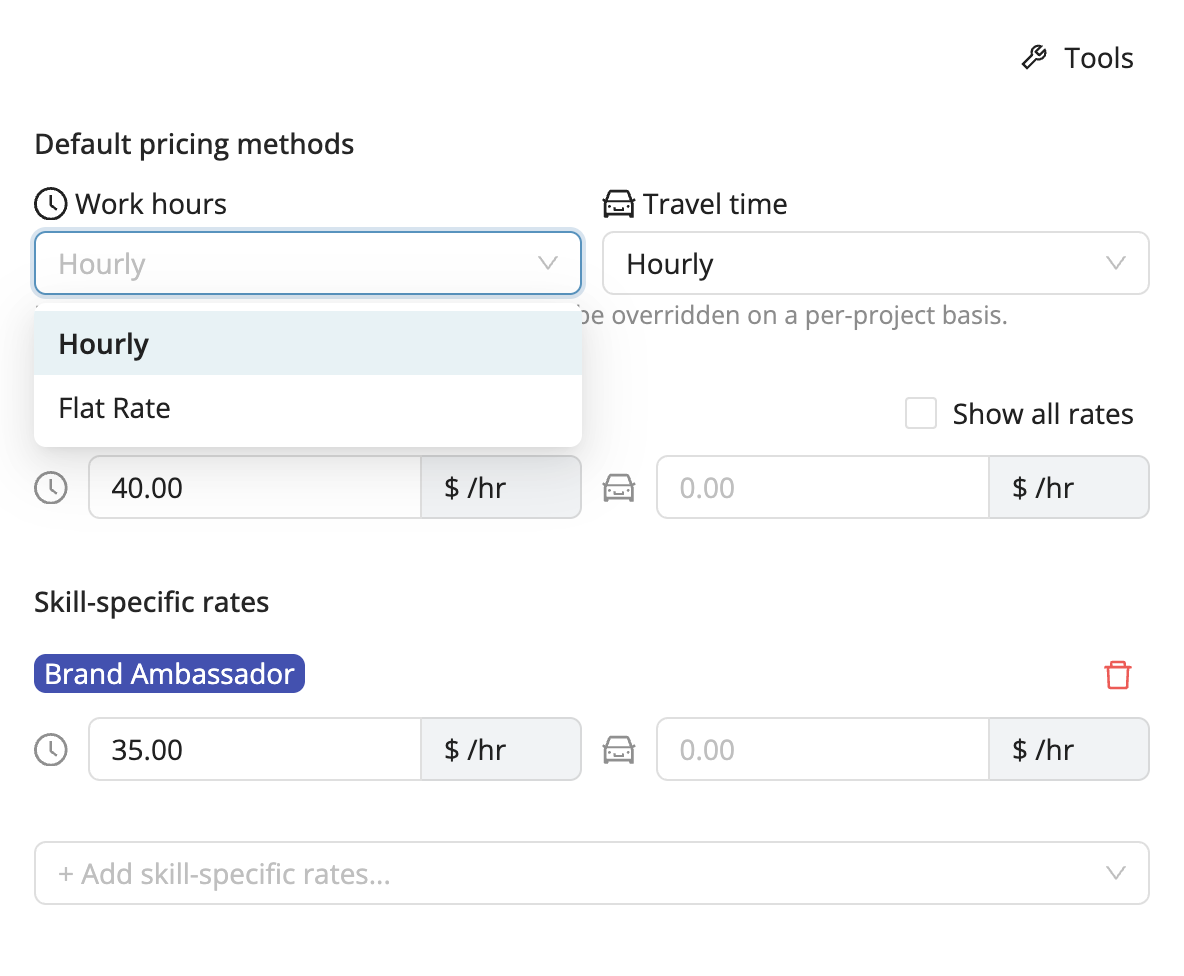
You can define your rates globally and per skill, but still override them when needed, right down to a single project:
- Account level (default for your organization)
- Client level (specific pricing for a client)
- Project level (custom pricing for an event)
When configuring your billing, you can choose between different billing modes depending on how you charge your clients. Each rate can be hourly or per shift, and can be set separately for worked hours and travel time to accurately reflect your billing practices:
- Hourly: a flat rate per hour worked or travelled
- Per shift: a fixed amount per shift
Update Pricing on Existing Projects
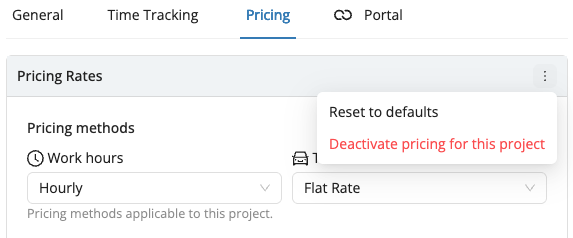
When you create a project, Workstaff copies the pricing rates from the account or client into that project. The project then keeps its own version of those rates.
If you add a new skill or update a rate later at the account or client level, existing projects do not update automatically. In that case, amounts may not appear correctly in the Client Pricing report until the project pricing settings are refreshed.
To refresh pricing rates on an existing project:
- Open the project.
- Go to Settings.
- Open the Pricing tab.
- Click Reset to defaults.
This pulls the latest pricing rates from the account or client level into the project.
Track and Analyze Billable Amounts
In each project’s Finances tab, you can view the budget amounts alongside staff remuneration data. This gives you an instant view of both your costs (staff pay) and revenues (client billing) in one place.
In the Reports section, a Client Pricing report provides a consolidated overview across your projects, clients, and specific time periods. You can easily export this data to Excel for deeper analysis and financial reporting.
To export this report to QuickBooks, see QuickBooks Export.
If you have questions or feedback about how Client Pricing works or how to best configure it for your organization, our support team is always happy to help.
Reach out via the chat or email us at support@workstaff.app.